
Let’s face it, organizing your photos on your iPhone can be tedious, and not that much fun. We take a lot of photos with our iPhones and our Photos app can get so congested with numerous photos that we don’t really want to keep, and going through them can be overwhelming. Well, the team at Reeflex have produced an app that is designed to take some of that burden off your shoulders.

Introducing SwAipe (pronounced “Swipe”), a new application designed by photographers for photographers. Reeflex, renowned for its flagship camera app, Reeflex Pro Camera, has unveiled a comprehensive suite of camera applications. These applications encompass the long exposure capabilities of ReeHeld, the RAW file generation of long exposures of ReeXpose, and the time-lapse creation of ReeLapse. Reeflex has demonstrated its expertise in capturing high-quality images. However, they have now set their sights on the broader photography workflow, specifically photo management.
I have to start off by saying SwAipe is beautifully designed (Image 1), and in the week I’ve had access to it, there wasn’t one time when it showed any signs of a single bug. I have to give a big tip of the hat to the Reeflex team because you don’t often hear of a new app hitting the App Store seemingly bug free.
So what does SwAipe do, exactly? The short answer is it’s a photo management app that works like a dating app. Sounds crazy, I know, but let me explain. A common swipe gesture in a dating app is if you are interested in someone, you swipe right; if you’re not interested, you swipe left. The same methodology applies with SwAipe except it applies to your photos. It’s a quick and easy way to sort through them.
Now let’s delve into the longer answer. SwAipe does a lot more than just sort your photos. On the Home Screen, accessed via the Home icon on the lower left of the screen, it has a utility feature that shows you an overview of your iPhone’s storage, and once you start swiping left on some images, it will show you how much storage space you can get back once you delete them. It should be noted right away that SwAipe doesn’t immediately delete any rejected photos or videos. It just marks them for deletion in the Trash section of the app.
The first time you open SwAipe, you will see the Overview section (Image 2), then below that, a banner prompting you to start swiping to create your AI gallery. Below that, there are two sections dedicated to showing your duplicate photos and videos. More on those later. But first, the AI gallery.
Tapping the prompt takes you to the Explore section (Image 3), which can also be accessed by tapping the Explore button at the bottom of the screen. Here, your photos are sorted by year, then once you tap on a year, by month, then by the photos within that month. Once you’re down to the individual photo, you can begin swiping to sort your images (Image 4). At the top of each photo is a heart on the right to indicate swiping right to keep it, and a trash can on the left to swipe left to discard it. If you suddenly decide you don’t want to delete an image, tap the “undo” button in the top right of the screen.
Once you swipe right to keep the image, SwAipe’s AI model gives your photos a score, or rating out of 100, based on composition and image quality and curates them into a gallery of your top-ranked photos. As you swipe through, you will see some of the ranked images begin to populate in a row along the bottom of the screen. After you have gone through all the images of a particular month, the highest rated photo becomes the cover photo for that month’s gallery with the title, “Photo of the Month”, and its score in Reeflex’s lovely green colour. (Image 5)
I found SwAipe’s AI ratings to be quite good. When I saw it give me a score on certain photos, I often raised an eyebrow and thought, “Yep, that IS a good one.” Remember, SwAipe doesn’t take into account the emotional side of your photos, so don’t be offended if your favourite doesn’t get the highest score.
Now, when you tap into the year in which those photos were taken, the monthly gallery then shows the photo of the month with three thumbnails of the next best photos underneath it. Tap to explore that month and you see the winning photo with it’s score at the bottom, but at the top is a review of how much space you can save from your deletions, the number of keepers and the number that you’ve deleted. Again, they aren’t actually gone yet.
In between the review and the wining photo is a banner called “Best of” where, when you open it, you are presented with your AI Gallery, a scrollable feed of the rest of the month’s images with their scores in the lower left corner (Image 6). If you tap on an image, it opens it and you can share with in the iPhone’s default share sheet, or delete it if you decide you don’t want it anymore. In the AI Gallery, you can tap a “sort” button altho bottom left and sort the photos by Recently Swiped, Oldest or Newest First, or by score. At the top of the Sort dialogue is a filter that allows you to see only the images within a specific scoring range, such as greater then 50%, 60%, up to 90%, or with no filter at all which shows all the photos within that month.
Finally, at the top right corner of the AI Gallery view is an Album icon. When you tap into this, you can create and AI Album of the month’s photos (Image 7). You select which photos to add and give the album a name. Once created, this album appears in your Photos app as a stand alone album. If you have a filter applied to the month’s photos, you are limited to the photos within the limits of that filter, so if you have selected the filter to only see images ranked at 90% and above, you can only select from those photos to add them to the album.
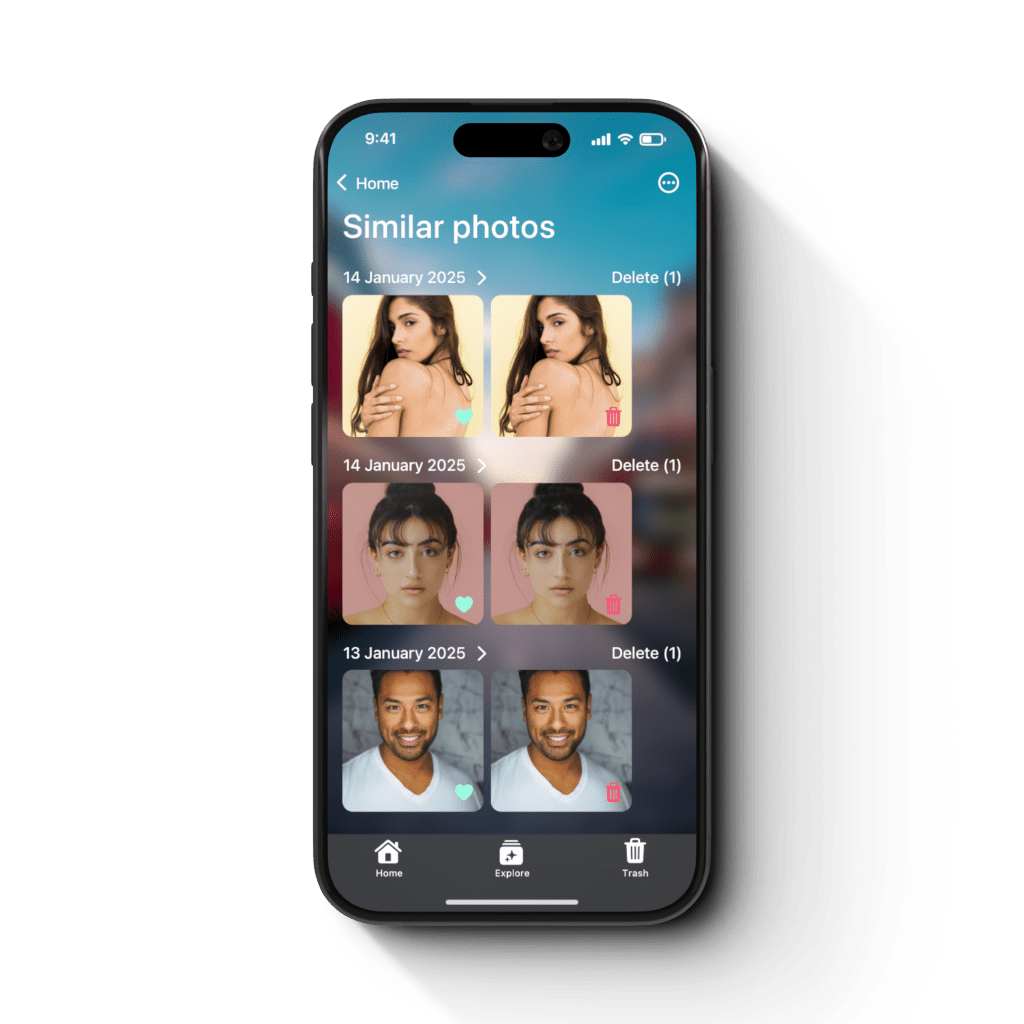
SwAipe scans your photos and can detect photos and video that are similar in appearance. Sometimes the results will show photos that aren’t exactly the same, but may be the same subject taken from a different angle. To view the results of this scan, go to the Home Screen and scroll down to the Similars section. Here you have two galleries, one for photos, and one for videos, and each one indicates the number of suspected duplicates (Image 8). This number will likely be low until you tap into each section and begin exploring the results. In my experience, SwAipe didn’t load all the duplicates right away. At the bottom of the list, there is a button to load more of the results.
The highest ranking image of each set of duplicates is the first one in the row and is labelled with a heart. The rest of the photos in that row are labelled with trash can which means they are marked for deletion. If you decide to keep it, just tap it and the trash can changes to a heart and the image will not be removed. Once you have determined which photos can be deleted, tap on the label opposite the date for those images to remove them. They are now in the Trash section of SwAipe. The same process can be done for videos.
So, now you’ve organized all your photos with SwAipe, but you still haven’t fully deleted the ones you don’t want. Tap the Trash icon in the lower left corner of the screen and you have a grid of all the photos you wished to throw out. At the bottom of this screen is a banner showing you how many items you have in the trash and how much space they take up. There is an option on the left side of the banner using a filter icon to sort the grid by Recently Swiped, Oldest first, or Newest first. On the right is an icon with three dots that, when tapped, gives you the choice to Select all or Deselect all. You can also tap on individual thumbnails in the grid to manually select images. Once you have selected some photos, the banner expands to offer you two choices. You can recover the selected photos or permanently delete them. If you restore them, they will appear in the “Best of” section and are automatically placed in the month where they originally resided. If you delete them, you will see a popup where SwAipe will ask for permission to delete the photos. If you allow this, they will removed from iCloud Photos on all of your devices and placed in the Recently Deleted section of the Photos app where they will remain for 30 days.
There are other apps on the market that can be used for managing your photos, but SwAipe offers something that I think could be an opportunity for ways to improve your photography, and maybe even present it’s users with a little competitive fun. The AI ranking system, being totally unbiased, could be a way to make you look back on the higher scoring photos and compare them to the lower scored photos, and wonder what you could have done differently to improve the lower scoring images.
The “Best of” photos from each month could be saved as a screenshot and shared amongst your friends to see who got the highest scored image. I would not be surprised if you see some of these screenshots show up in Reeflex’s Piazza – Photo Competitions, Tips&Tricks, Meet&Greet Facebook Group. I mean, “Photo Competitions” is part of the title, right?
I’ve really enjoyed using SwAipe. It’s a very refreshing way to sort your photos, and seeing the rankings is always exciting. I can’t wait to see what Reeflex does with this app going forward.
SwAipe is available now!



 McMillan Media
Great article Greg, very informative. I’ve been looking for something where I can store all my best photos, this could be the answer! Look forward to trying it out. 😊
It very useful, and fun!